 Stefan Mogeritsch
aa157e82f8
Stefan Mogeritsch
aa157e82f8
- Documented Access Control features (e.g., Device Approvals, Password Rotation, 2FA, Custom Login Pages).
- Added detailed descriptions for Logs & Analytics (Access Logs, Request Logs, Action Logs).
- Included configuration instructions and feature-specific notes for Pangolin Cloud and Enterprise Edition.

Signed-off-by: Stefan Mogeritsch <stefan.mo.co@gmail.com>
7.6 KiB
Documentation Index
Fetch the complete documentation index at: https://docs.pangolin.net/llms.txt Use this file to discover all available pages before exploring further.
Install Sites
Install Newt as a binary or Docker container
Newt can be installed as either a static binary executable or a Docker container. You must first create a site and copy the Newt config in Pangolin before running Newt.
Binary Installation
Quick Install (Recommended)
Use this command to automatically install Newt. It detects your system architecture automatically and always pulls the latest version, adding Newt to your PATH:
curl -fsSL https://static.pangolin.net/get-newt.sh | bash
Windows
If you would like to use Newt on Windows as a service or with clients, wintun.dll is sometimes required. Please use latest installer from GitHub releases.
Manual Download
Binaries for Linux, macOS, and Windows are available in the GitHub releases for ARM and AMD64 (x86_64) architectures.
Download and install manually:
wget -O newt "https://github.com/fosrl/newt/releases/download/{version}/newt_{architecture}" && chmod +x ./newt
Running Newt
Run Newt with the configuration from Pangolin:
newt \
--id 31frd0uzbjvp721 \
--secret h51mmlknrvrwv8s4r1i210azhumt6isgbpyavxodibx1k2d6 \
--endpoint https://app.pangolin.net
Systemd Service
Create a basic systemd service:
[Unit]
Description=Newt
After=network.target

[Service]
ExecStart=/usr/local/bin/newt --id 31frd0uzbjvp721 --secret h51mmlknrvrwv8s4r1i210azhumt6isgbpyavxodibx1k2d6 --endpoint https://app.pangolin.net
Restart=always
User=root

[Install]
WantedBy=multi-user.target
Docker Installation
Pull the Image
Pull the latest Newt image from Docker Hub:
docker pull fosrl/newt:latest
Run with Docker
Run Newt with CLI arguments from Pangolin:
docker run -it fosrl/newt --id 31frd0uzbjvp721 \
--secret h51mmlknrvrwv8s4r1i210azhumt6isgbpyavxodibx1k2d6 \
--endpoint https://app.pangolin.net
Docker Compose
Environment Variables (Recommended)
services:
  newt:
    image: fosrl/newt
    container_name: newt
    restart: unless-stopped
    environment:
      - PANGOLIN_ENDPOINT=https://app.pangolin.net
      - NEWT_ID=2ix2t8xk22ubpfy
      - NEWT_SECRET=nnisrfsdfc7prqsp9ewo1dvtvci50j5uiqotez00dgap0ii2
Config File Injected as Compose Secret
A safer but slightly more complex way is to use Compose Secrets.
First, create a JSON file containing your configuration:
{
  "id": "2ix2t8xk22ubpfy",
  "secret": "nnisrfsdfc7prqsp9ewo1dvtvci50j5uiqotez00dgap0ii2",
  "endpoint": "https://app.pangolin.net",
  "tlsClientCert": ""
}
Then register and reference the secret in your docker-compose.yml:
services:
  newt:
    image: fosrl/newt
    container_name: newt
    restart: unless-stopped
    environment:
      - CONFIG_FILE=/run/secrets/newt-config
    secrets:
      - newt-config

secrets:
  newt-config:
    file: ./newt-config.secret
This allows you to separate sensitive secrets from plain configuration, improving security when storing or sharing your
docker-compose.yml anywhere else.
CLI Arguments
services:
  newt:
    image: fosrl/newt
    container_name: newt
    restart: unless-stopped
    command:
      - --id 31frd0uzbjvp721
      - --secret h51mmlknrvrwv8s4r1i210azhumt6isgbpyavxodibx1k2d6
      - --endpoint https://app.pangolin.net
Start the service:
docker compose up -d
Platform-Specific Installation
Unraid
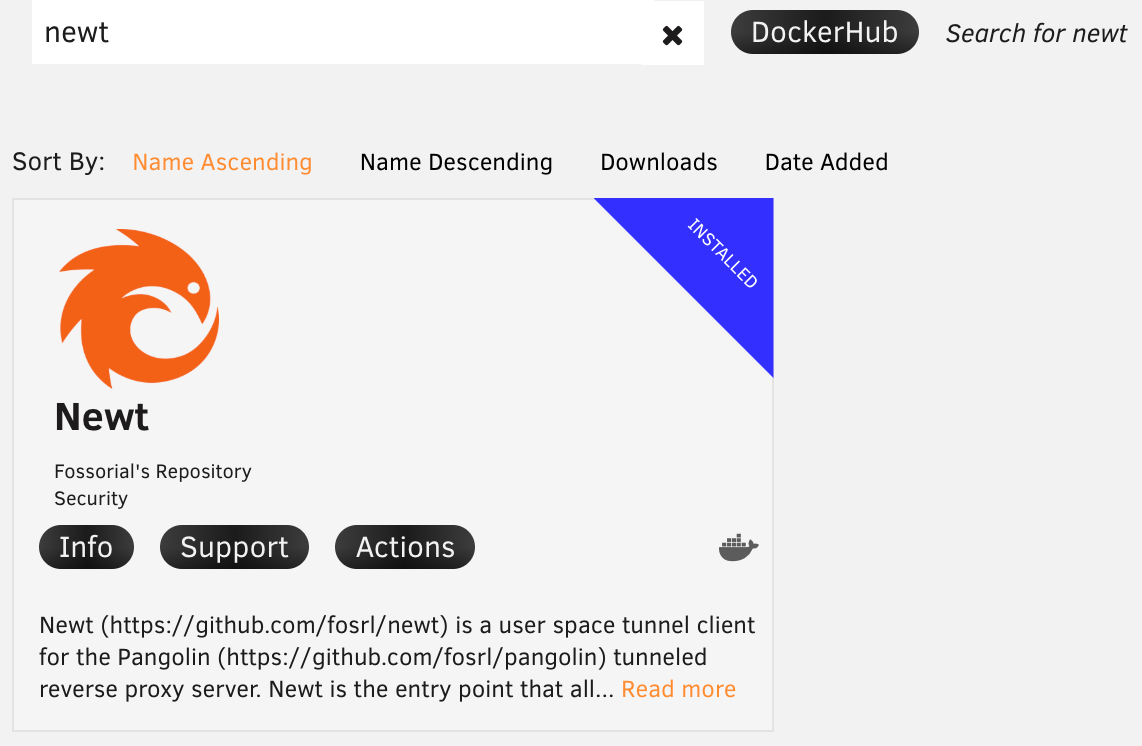
Newt is available in the Unraid Community Applications store. Search for "Newt" and follow the installation prompts. Enter the ID, secret, and endpoint from Pangolin in the template fields.
Portainer and Other UIs
Container management UIs like Portainer typically allow passing commands and environment variables to containers similar to Docker Compose. Look for a commands or arguments configuration section and follow the relevant guides.
Windows Service
On Windows, newt can to be installed and run as a Windows service to remain persistent.
Service Management Commands
# Install the service
newt.exe install

# Start the service
newt.exe start

# Stop the service
newt.exe stop

# Check service status
newt.exe status

# Remove the service
newt.exe remove

# Show help
newt.exe service-help
Note running the service requires credentials in %PROGRAMDATA%\newt\newt-client\config.json.
Service Configuration
When running as a service, newt will read configuration from environment variables or you can modify the service to include command-line arguments:
- Install the service:
newt.exe install - Set the credentials in
%PROGRAMDATA%\newt\newt-client\config.json. Hint: if you run newt once with --id and --secret this file will be populated! - Start the service:
newt.exe start
Service Logs
When running as a service, logs are written to:
- Windows Event Log (Application log, source: "newtWireguardService")
- Log files in:
%PROGRAMDATA%\newt\logs\newt.log
You can view the Windows Event Log using Event Viewer or PowerShell:
Get-EventLog -LogName Application -Source "newtWireguardService" -Newest 10